FlutterDartPDFWebViewJavaScript

Flutter & WebView Communication: A Practical Guide with PDF.js Integration

Render and navigate PDF files with text selection support in Flutter using InAppWebView & PDF.js.

Hello coders,

In today’s development world, creating communication between Flutter and web or JavaScript libraries can unlock powerful, interactive experiences for users.

One such example is integrating PDF.js, a powerful JavaScript library to display and handle PDFs.

We’ll explore how to set up two-way communication between Flutter & Flutter InAppWebView, and integrate PDF.js inside the Flutter environment to display and handle PDFs.

  1. Load PDF from Local Storage:
    Use file_picker to select a PDF and convert it to binary format for processing.

  2. Render PDF with Text Selection:
    Send the binary to PDF.js using flutter_inappwebview for rendering with text selection enabled.

  3. Synchronize PDF Page Information:
    Retrieve the total page count from PDF.js and pass it to Flutter when the PDF is visible.

  4. Navigate and Jump to Specific Pages:
    Send events from Flutter to PDF.js to navigate between or jump to specific pages, and retrieve the current page being rendered.

Let's start. I am creating new project named - flutterwebpdf with flutter create flutterwebpdf . here i am using the following packages,

  1. Provider - for state management.
  2. File Picker - to pick pdf files from storage.
  3. Flutter InAppWebView - to create PDF.js web environment inside the flutter application.

So add them as dependencies inside your pubspec.yaml file. now let's create the assets folder in your project root to keep all our PDF.js related dependencies and our webview html code and other javascript files. here i am utlizing minified PDF.js and pdf.worker.js code to setup the pdf webview environment in flutter.

assets ├── pdf.js ├── pdf.worker.js ├── pdfjs.html └── script.js

Now let's create pdfjs.html & script.js to create PDF view, this script.js will take the pdf base64 data as input and to display it as WebView.

HTML
<!-- pdfjs.html -->

<!DOCTYPE html>
<html lang="en">

<head>
    <meta charset="UTF-8">
    <style>
         body,
        html {
            margin: 0;
            padding: 0;
            height: 100%;
            overflow: hidden;
            background-color: rgb(1, 1, 15);
        }

        #pdf-container {
            display: flex;
            justify-content: center;
            align-items: center;
            height: 100vh;
            width: 100vw;
            box-sizing: border-box;
            padding: 20px;
            overflow: auto;
        }

        .pdf-page {
            position: relative;
            display: flex;
            justify-content: center;
            align-items: center;
            margin: 0 auto;
        }

        canvas {
            max-width: 100%;
            height: auto;
            box-shadow: 0 0 10px rgba(255, 255, 255, 0.1);
        }

        .textLayer {
            position: absolute;
            left: 0;
            top: 0;
            right: 0;
            bottom: 0;
            overflow: hidden;
            opacity: 0.2;
            line-height: 1.0;
            user-select: text;
            -webkit-user-select: text;
            pointer-events: auto;
        }

        .textLayer>span {
            color: transparent;
            position: absolute;
            white-space: pre;
            cursor: text;
            transform-origin: 0% 0%;
        }

        .textLayer ::selection {
            background: rgba(0, 0, 255, 0.3);
        }

    </style>
</head>

<body>
    <div id="pdf-container">
        <div id="page-container" class="pdf-page">
            <canvas id="pdf-canvas"></canvas>
        </div>
    </div>
    <script src="pdf.js"></script>
    <script src="script.js"></script>
</body>

</html>

this is the html template i am using with little css styling to fit to our Flutter Webview Environment.

CSS
pdf-container
    └── page-container (pdf-page)
          └── pdf-canvas
  1. pdf-container This is the outermost container. It holds the entire PDF view.
  2. page-container This is a container inside pdf-container, which holds each individual PDF page.
  3. pdf-canvas This is a <canvas> element inside page-container where each page of the PDF will be rendered.

Now create script.js file inside assets folder to load the PDF.js library and render the PDF in HTML canvas by taking file base64 string as input.

JAVASCRIPT
pdfjsLib.GlobalWorkerOptions.workerSrc = "pdf.worker.js";

const container = document.getElementById("pdf-container");

let pdfDoc = null;
let currentPage = 1;

function renderPdf(pdfBase64) {
  pdfjsLib.getDocument({ data: base64ToUint8Array(pdfBase64) }).promise.then((pdf) => {
    pdfDoc = pdf;
    renderPage(currentPage);
    window.flutter_inappwebview.callHandler("totalPdfPages", pdfDoc.numPages);
  }).catch((error) => {
    console.error("Error loading PDF:", error);
  });
}

function base64ToUint8Array(base64) {
  const raw = atob(base64);
  const uint8Array = new Uint8Array(raw.length);
  for (let i = 0; i < raw.length; i++) {
    uint8Array[i] = raw.charCodeAt(i);
  }
  return uint8Array;
}

function renderPage(pageNum) {
  pdfDoc.getPage(pageNum).then((page) => {
    const viewport = page.getViewport({ scale: 1.5 });
    const canvas = document.getElementById("pdf-canvas");
    const ctx = canvas.getContext("2d");

    canvas.width = viewport.width;
    canvas.height = viewport.height;

    const renderContext = {
      canvasContext: ctx,
      viewport: viewport,
    };

    page.render(renderContext).promise.then(() => {
      return page.getTextContent();
    }).then((textContent) => {
      const textLayer = document.createElement("div");
      textLayer.className = "textLayer";
      textLayer.style.width = `${viewport.width}px`;
      textLayer.style.height = `${viewport.height}px`;
      document.getElementById("page-container").appendChild(textLayer);

      pdfjsLib.renderTextLayer({
        textContent: textContent,
        container: textLayer,
        viewport: viewport,
        textDivs: [],
      });
    });

    window.flutter_inappwebview.callHandler("currentPage", pageNum);
  });
}

function jumpToPage(pageNum) {
  if (pageNum < 1 || pageNum > pdfDoc.numPages) {
    console.error("Invalid page number:", pageNum);
    return;
  }

  if (pageNum === currentPage) {
    console.log("Already on the requested page:", pageNum);
    return;
  }

  currentPage = pageNum;
  renderPage(currentPage).catch((error) => {
    console.error("Error rendering page:", error);
  });
}

function changePage(toNextPage) {
  if (toNextPage && currentPage < pdfDoc.numPages) {
    currentPage++;
    renderPage(currentPage);
  } else if (!toNextPage && currentPage > 1) {
    currentPage--;
    renderPage(currentPage);
  }
}

Okkk… let me explain what this script.js file does.

  1. Initialize PDF.js Worker: Sets the PDF.js worker source for background processing using pdfjsLib.GlobalWorkerOptions.workerSrc = "pdf.worker.js".
  2. Define Variables:
    • container: The HTML element for PDF display.
    • pdfDoc: Holds the loaded PDF document object.
    • currentPage: Tracks the current page number (initialized to 1)
  3. Load and Render PDF Document:
    • renderPdf(pdfBase64): Converts the Base64-encoded PDF (which is coming from the flutter) to a Uint8Array, then loads it with pdfjsLib.getDocument and assigns the result to pdfDoc.
    • Renders the first page using renderPage(currentPage).
    • Sends the total number of pages to Flutter using window.flutter_inappwebview.callHandler("totalPdfPages", pdfDoc.numPages). (This I will explain in a while).
  4. Render Specific PDF Page
    • renderPage(pageNum): Retrieves and renders the specified page onto a canvas.
    • Sets the canvas dimensions to match the viewport, then renders the PDF page using page.render(renderContext).
    • Adds a selectable text layer overlay for content, and notifies Flutter of the current page using window.flutter_inappwebview.callHandler("currentPage", pageNum).
  5. Jump to a Specific Page:
    • jumpToPage(pageNum): Jumps to a specified page if it's within bounds and different from currentPage.
  6. Navigate Pages:
    • changePage(toNextPage): Adjusts currentPage up or down depending on toNextPage, then calls renderPage(currentPage) to display the updated page.

That's all we require the non-flutter setup for this project.

WebView Communication Overview

To send event from,

  1. Flutter to WebView:
DART
webViewController?.evaluateJavascript(
  source: "callJsFunction($data)", // this source will be javascript code or function call
);

this will execute the javascript functions that are declared in our script files.

  1. WebView to Flutter
JAVASCRIPT
// this will call the javascript handler
// which we have attached when webview is loaded in Flutter
window.flutter_inappwebview.callHandler("eventFromWebView", data);
JAVASCRIPT
// This will listen the "eventFromWebView" event and provide the call back
// handler name should be same as callHandler name in Javascript code.
webViewController?.addJavaScriptHandler(
  handlerName: "eventFromWebView",
  callback: (List data) {
    if (data.isNotEmpty) {
     // handle the data 
    }
  },
);

Flutter - WebView - PDF.js communication

Now Let's dive into exciting Flutter integration! this is the folder and files structure i am going to use for this project,

CSS
lib
├── main.dart
├── provider
│   └── pdf_provider.dart
└── views
    ├── home_page.dart
    └── pdf_page.dart

lib/main.dart

DART
import 'package:flutter/material.dart';
import 'package:flutterwebpdf/provider/pdf_provider.dart';
import 'package:flutterwebpdf/views/home_page.dart';
import 'package:provider/provider.dart';

void main() {
  runApp(const MyApp());
}

class MyApp extends StatelessWidget {
  const MyApp({super.key});

  @override
  Widget build(BuildContext context) {
    return MultiProvider(
      providers: [
        ChangeNotifierProvider(create: (_) => PdfProvider()),
      ],
      child: const MaterialApp(
        debugShowCheckedModeBanner: false,
        home: HomePage(),
      ),
    );
  }
}

The app starts in main.dart, where MyApp sets up the root widget, loading HomePage as the initial screen and I am providing an instance of PdfProvider to the entire widget tree with MultiProvider, allowing any widget within the app to access and listen for changes to PdfProvider.

lib/views/home_page.dart

DART
import 'package:flutter/material.dart';
import 'package:flutterwebpdf/provider/pdf_provider.dart';
import 'package:flutterwebpdf/views/pdf_page.dart';
import 'package:provider/provider.dart';

class HomePage extends StatelessWidget {
  const HomePage({super.key});

  @override
  Widget build(BuildContext context) {
    return Scaffold(
      body: Consumer<PdfProvider>(
        builder: (context, pdfProvider, _) {
          return Center(
            child: ElevatedButton(
              onPressed: () async {
                bool isSelected = await pdfProvider.selectPdfFile();
                if (isSelected) {
                  Navigator.push(
                    context,
                    MaterialPageRoute(
                      builder: (context) {
                        return const PdfPage();
                      },
                    ),
                  );
                }
              },
              child: const Text("Pick Pdf File"),
            ),
          );
        },
      ),
    );
  }
}

In HomePage, a Pick Pdf File button allows the user to select a PDF file. When selected, the file is converted to a base64 string for rendering and will save this base64 string in PdfProvider. After selecting the PDF, the app navigates to PdfPage.

lib/views/pdf_page.dart

DART
import 'package:flutter/material.dart';
import 'package:flutter_inappwebview/flutter_inappwebview.dart';
import 'package:flutterwebpdf/provider/pdf_provider.dart';
import 'package:provider/provider.dart';

class PdfPage extends StatefulWidget {
  const PdfPage({super.key});

  @override
  State<PdfPage> createState() => _PdfPageState();
}

class _PdfPageState extends State<PdfPage> {
  @override
  Widget build(BuildContext context) {
    return Scaffold(
      body: Consumer<PdfProvider>(builder: (context, pdfProvider, _) {
        return Column(
          children: [
            SizedBox(
              height: 600,
              child: InAppWebView(
                initialFile: "assets/pdfjs.html",
                onLoadStop: (
                  InAppWebViewController controller,
                  WebUri? url,
                ) async {
                  await pdfProvider.onWebViewLoaded(controller);
                },
                onConsoleMessage: (controller, consoleMessage) {
                  print("Console Message $consoleMessage");
                },
              ),
            ),
            SizedBox(
              height: 100,
              child: Row(
                mainAxisAlignment: MainAxisAlignment.spaceEvenly,
                children: [
                  IconButton(
                    tooltip: "Previous page",
                    icon: const Icon(
                      Icons.arrow_back,
                    ),
                    onPressed: () async {
                      pdfProvider.changePage(toNextPage: false);
                    },
                  ),
                  Row(
                    children: [
                      const Padding(
                        padding: const EdgeInsets.symmetric(horizontal: 10),
                        child: Text("Enter PageNo:"),
                      ),
                      SizedBox(
                        width: 50,
                        height: 60,
                        child: Center(
                          child: TextField(
                            controller: pdfProvider.pdfPageController,
                            keyboardType: TextInputType.number,
                            textAlign: TextAlign.center,
                            style: Theme.of(context).textTheme.titleLarge,
                            decoration: const InputDecoration(
                              border: OutlineInputBorder(),
                            ),
                            onSubmitted: (value) {
                              final pageNo = int.tryParse(value);
                              pdfProvider.jumpToPage(pageNo: pageNo ?? 1);
                            },
                          ),
                        ),
                      ),
                      Padding(
                        padding: const EdgeInsets.symmetric(horizontal: 10),
                        child: Text(
                          "/${pdfProvider.pdfPagesCount}",
                          style: Theme.of(context).textTheme.titleLarge,
                        ),
                      )
                    ],
                  ),
                  IconButton(
                    tooltip: "Next page",
                    icon: Icon(
                      Icons.arrow_forward,
                    ),
                    onPressed: () async {
                      pdfProvider.changePage(toNextPage: true);
                    },
                  ),
                ],
              ),
            )
          ],
        );
      }),
    );
  }
}

Here, an InAppWebView loads pdfjs.html from assets assets/which contains the JavaScript for rendering PDFs.

Once the HTML file loads will trigger the onWebViewLoaded method in PdfProvider by passing the InAppWebViewController as function parameter.

In bottom of PdfPage I've created a row of elements to,

  1. Text Input: A TextField for entering a page number, which is used to jump to a specific page when submitted by triggering pdfProvider.jumpToPage(pageNo: pageNo ?? 1).
  2. Page Indicator: Displays the current total number of pages in the PDF (/totalPages) when pdfProvider.pdfPagesCount changes .
  3. IconButtons: Two IconButton s with a right & left arrow icon that allows the user to navigate to the next & previous page of the PDF by calling pdfProvider.changePage.

lib/provider/pdf_provider.dart

DART
import 'dart:convert';
import 'dart:io';

import 'package:file_picker/file_picker.dart';
import 'package:flutter/material.dart';
import 'package:flutter_inappwebview/flutter_inappwebview.dart';

class PdfProvider extends ChangeNotifier {
  String selectedFileBase64 = "";
  InAppWebViewController? _webViewController;
  int pdfPagesCount = 0;
  int currentPage = 1;
  TextEditingController pdfPageController = TextEditingController();

  Future<bool> selectPdfFile() async {
    FilePickerResult? result = await FilePicker.platform.pickFiles(
      allowedExtensions: ['pdf'],
      type: FileType.custom,
    );
    if (result != null && result.files.isNotEmpty) {
      final selectedFile = File(result.files.single.path!);
      selectedFileBase64 = await convertBase64(selectedFile);
      return true;
    }
    return false;
  }

  Future<String> convertBase64(File file) async {
    List<int> pdfBytes = await file.readAsBytes();
    String base64File = base64Encode(pdfBytes);
    return base64File;
  }

  Future onWebViewLoaded(InAppWebViewController webViewController) async {
    _webViewController = webViewController;
    _webViewController?.evaluateJavascript(
      source: "renderPdf('$selectedFileBase64')",
    );
    addTotalPdfPagesListener();
    addCurrentPageListener();
  }

  void addTotalPdfPagesListener() {
    _webViewController?.addJavaScriptHandler(
      handlerName: "totalPdfPages",
      callback: (List data) {
        if (data.isNotEmpty && data.first is int) {
          pdfPagesCount = data.first;
          notifyListeners();
        }
      },
    );
  }

  void addCurrentPageListener() {
    _webViewController?.addJavaScriptHandler(
      handlerName: "currentPage",
      callback: (List data) {
        if (data.isNotEmpty && data.first is int) {
          currentPage = data.first;
          pdfPageController.text = currentPage.toString();
          notifyListeners();
        }
      },
    );
  }

  void jumpToPage({
    int pageNo = 1,
  }) {
    _webViewController?.evaluateJavascript(
      source: "jumpToPage($pageNo)",
    );
  }

  void changePage({bool toNextPage = false}) {
    _webViewController?.evaluateJavascript(
      source: "changePage($toNextPage)",
    );
  }
}

Let's breakdown the PdfProvider class and its functions.

  1. selectPdfFile(): This will be trigger from HomePageOpens the file picker to select a PDF file & Converts the selected PDF file to a base64 string by calling convertBase64and stores it in selectedFileBase64. Returns true if a file is selected, false otherwise.
  2. onWebViewLoaded(): This will get called when webview is loaded assets/pdfjs.html file in PdfPage InAppWebView on onLoadStop callback. this will execute the several functions and adds several WebView Listeners which are,
  • Execute renderPdf method in assets/script.js by passing selectedFileBase64 string, to load the PDF in WebView environment.
DART
_webViewController?.evaluateJavascript(
  source: "renderPdf('$selectedFileBase64')",
);
  • **addTotalPdfPagesListener(): **Listens for page count changes triggered by window.flutter_inappwebview.callHandler("totalPdfPages", pdfDoc.numPages) in assets/script.js and updates pdfPagesCount in the provider.
  • **addCurrentPageListener(): **Listens for current page changes triggered by window.flutter_inappwebview.callHandler("currentPage", pageNum) in assets/script.js and updates currentPage in the provider and pdfPageController.text.
  1. **jumpToPage(pageNo): **Executes jumpToPage($pageNo) JavaScript function in assets/script.js when TextField value is submitted in the PdfPage to navigate to a specific page in the PDF.
DART
_webViewController?.evaluateJavascript(
  source: "jumpToPage($pageNo)",
);
  1. **changePage(toNextPage): **Executes changePage($toNextPage) JavaScript function in assets/script.js to navigate to the next or previous page which will be triggered by left and right arrow buttons in PdfPage.
DART
_webViewController?.evaluateJavascript(
  source: "changePage($toNextPage)",
);

That's IT… 😊

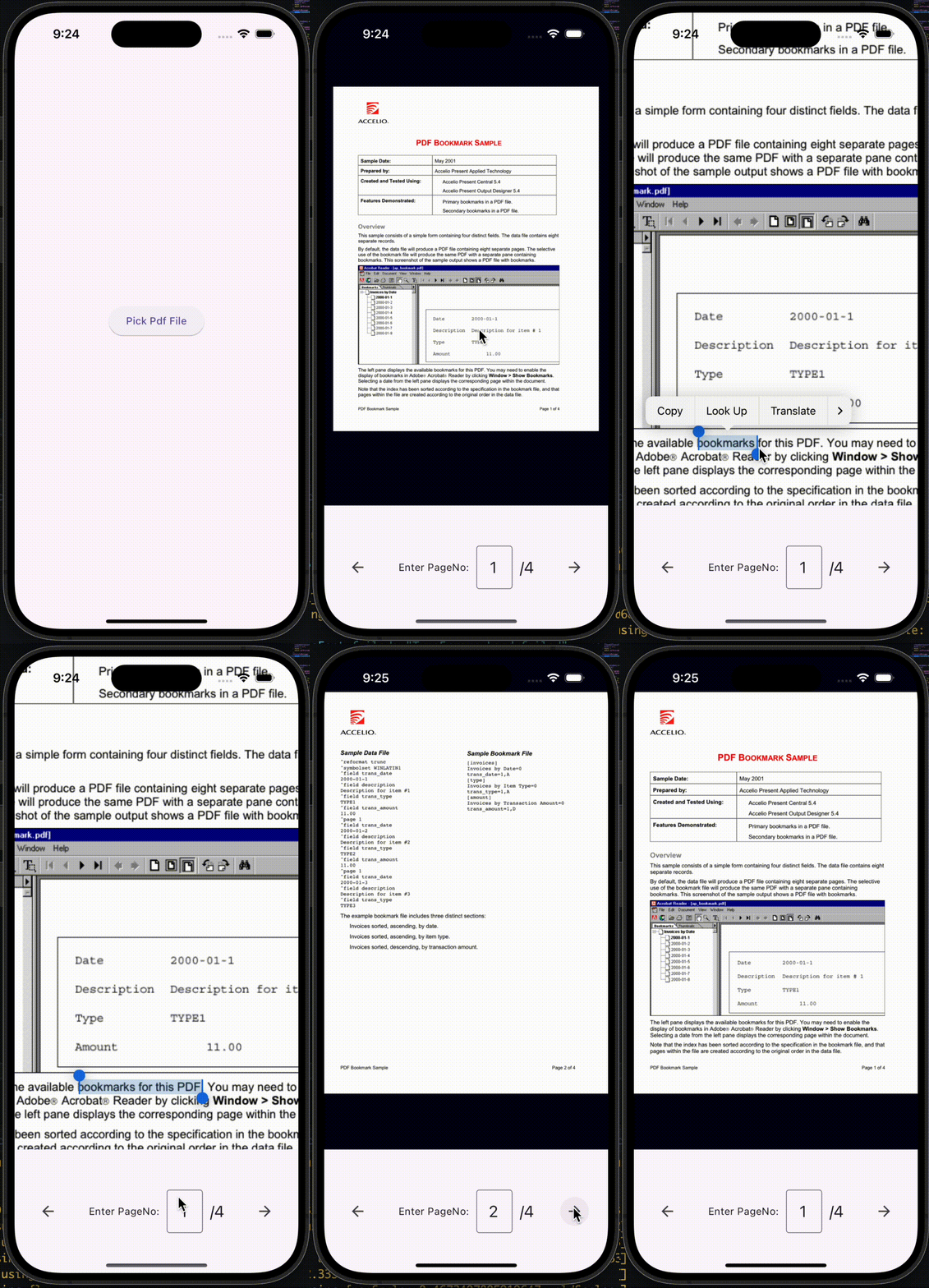
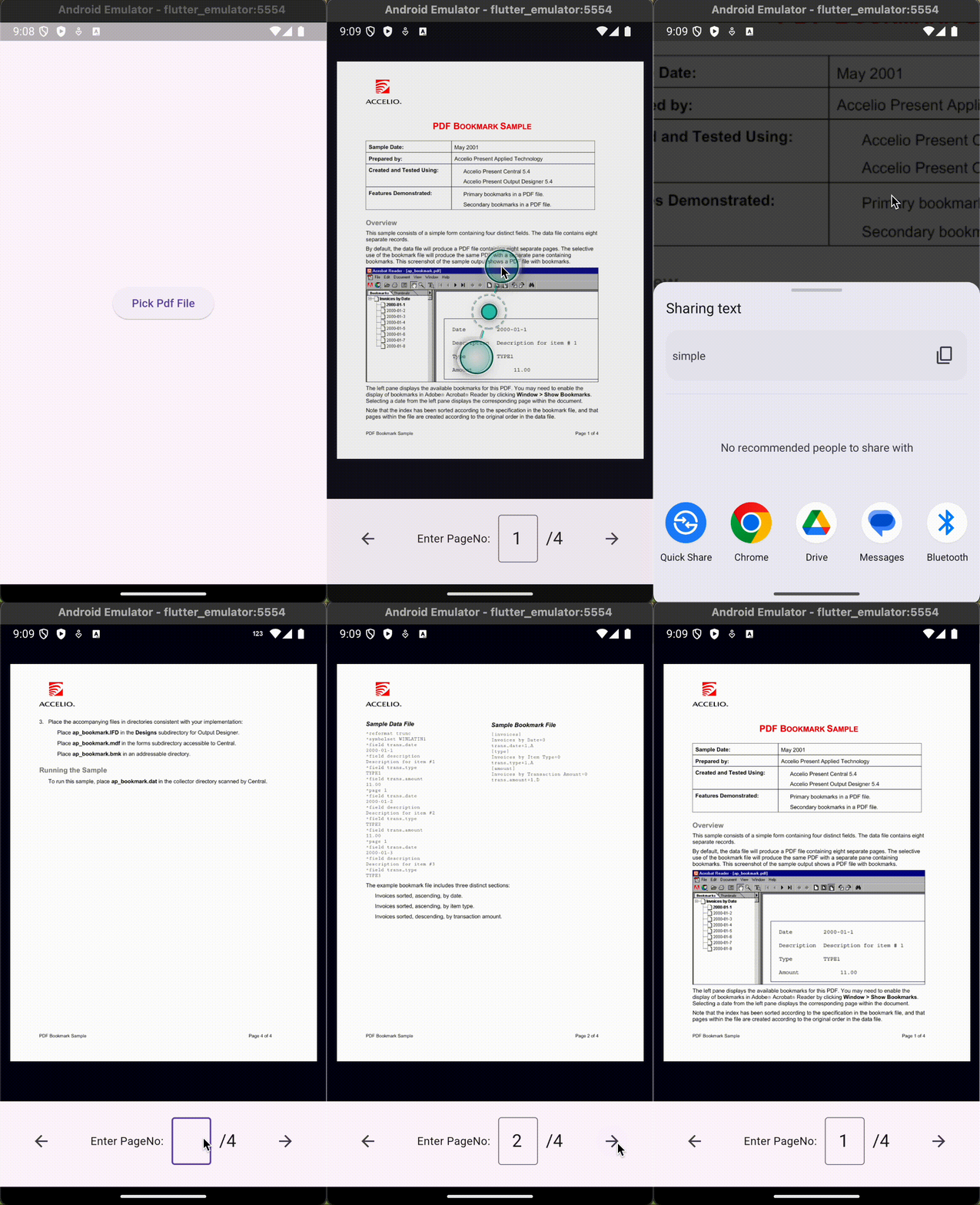
Final Output

Android Output

Ios output

That's it…… 🥳

Me and My Brother used this Idea to create a complete PDF viewer project as OpenPDF with Flutter. Please Check this post Link.

In this project we've added more features such as ,

Downloading PDFs, Offline Dictionary Support, Opened PDF Files history, and lot more features to represent a full fledged PDF Viewer Android App.

Useful Links

Git: https://github.com/vidya-hub/flutterwebpdf

InAppWebView Guide: https://inappwebview.dev/

PDF.js Guide: https://mozilla.github.io/pdf.js/

Thanks a lot for reading this article 😊